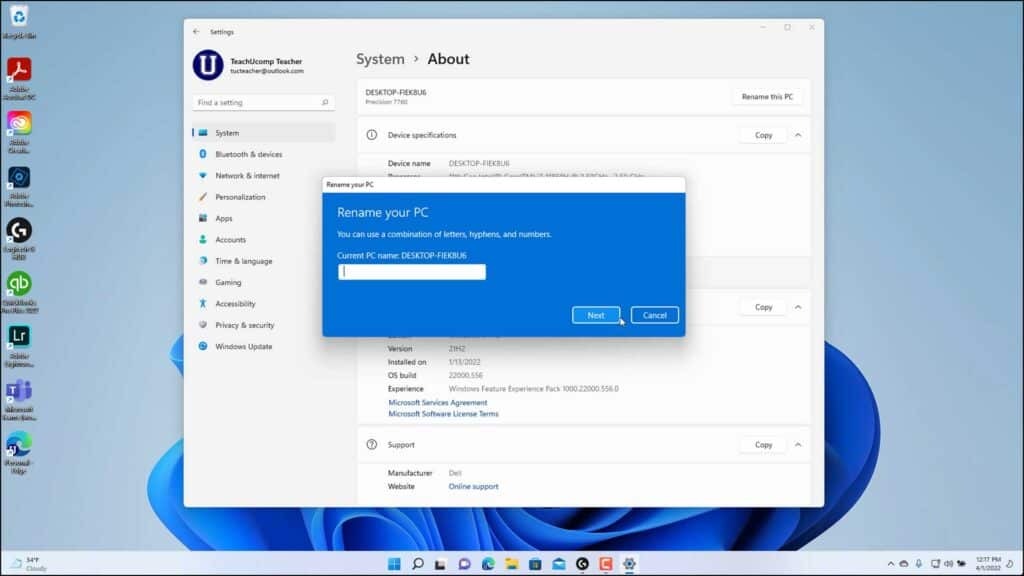
To access settings in Windows 11 that show device information or let you change the computer name, open the “Settings” app window. Then click the “System” button at the left side of the screen to show the system settings for your device. Then click the “About” category in the pane at the right side of the window to show the device settings for Windows 11 in the right pane. These settings let you rename the PC in Windows 11, view device information, Windows information, and support information.
To change the computer name in Windows 11, click the “Rename this PC” button for the setting that shows the device’s current name at the top of the “About” settings. Then type a new PC name into the “Rename your PC” dialog box that opens and click the “Next” button to continue. Then click the button in the next screen for the restart option you prefer. You need to restart the computer to apply the name change.
A picture showing how to change the computer name in Windows 11 within its “About” settings category.
To instead view the device specifications in Windows 11, click the “Device specifications” setting to expand that section, if needed. To copy the device specs, click the “Copy” button within the “Device specifications” setting.
If needed, to show the “System Properties” dialog box in Windows 11 and show either its “Computer name,” “System Protection,” or “Advanced” tab, click the “Domain or workgroup,” “System protection,” or “Advanced system settings” links, respectively, in the expanded section of the “Device specifications” setting. These settings are often used by IT support in work organizations to join devices to domains, manage system restore settings, and access advanced system settings, as needed. To close the “System Properties” dialog box, click the “X” in its upper-right corner.
To view the Windows specifications in Windows 11, click the “Windows specifications” setting to expand that section, if needed. To copy the Windows specs, click the “Copy” button within the “Windows specifications” setting. To view the support specifications in Windows 11, click the “Support” setting to expand that section, if needed. To copy the support specs, click the “Copy” button within the “Support” setting. To close the “Settings” app window, when finished, click the “X” button in its upper-right corner.
Instructions on How to Change the Computer Name in Windows 11:
- To access settings in Windows 11 that show device information or let you change the computer name, open the “Settings” app window.
- Then click the “System” button at the left side of the screen to show the system settings for your device.
- Then click the “About” category in the pane at the right side of the window to show the device settings for Windows 11 in the right pane.
- To change the computer name in Windows 11, click the “Rename this PC” button for the setting that shows the device’s current name at the top of the “About” settings.
- Then type a new PC name into the “Rename your PC” dialog box that opens and click the “Next” button to continue.
- Then click the button in the next screen for the restart option you prefer.
- You need to restart the computer to apply the name change.
- To instead view the device specifications in Windows 11, click the “Device specifications” setting to expand that section, if needed.
- To copy the device specs, click the “Copy” button within the “Device specifications” setting.
- If needed, to show the “System Properties” dialog box in Windows 11 and show either its “Computer name,” “System Protection,” or “Advanced” tab, click the “Domain or workgroup,” “System protection,” or “Advanced system settings” links, respectively, in the expanded section of the “Device specifications” setting. These settings are often used by IT support in work organizations to join devices to domains, manage system restore settings, and access advanced system settings, as needed.
- To close the “System Properties” dialog box, click the “X” in its upper-right corner.
- To view the Windows specifications in Windows 11, click the “Windows specifications” setting to expand that section, if needed.
- To copy the Windows specs, click the “Copy” button within the “Windows specifications” setting.
- To view the support specifications in Windows 11, click the “Support” setting to expand that section, if needed.
- To copy the support specs, click the “Copy” button within the “Support” setting.
- To close the “Settings” app window, when finished, click the “X” button in its upper-right corner.
|












 November 5, 2025
  593 views,
  3 comments